
Cut Kids' Screen Time With General Tech
— 6 min read
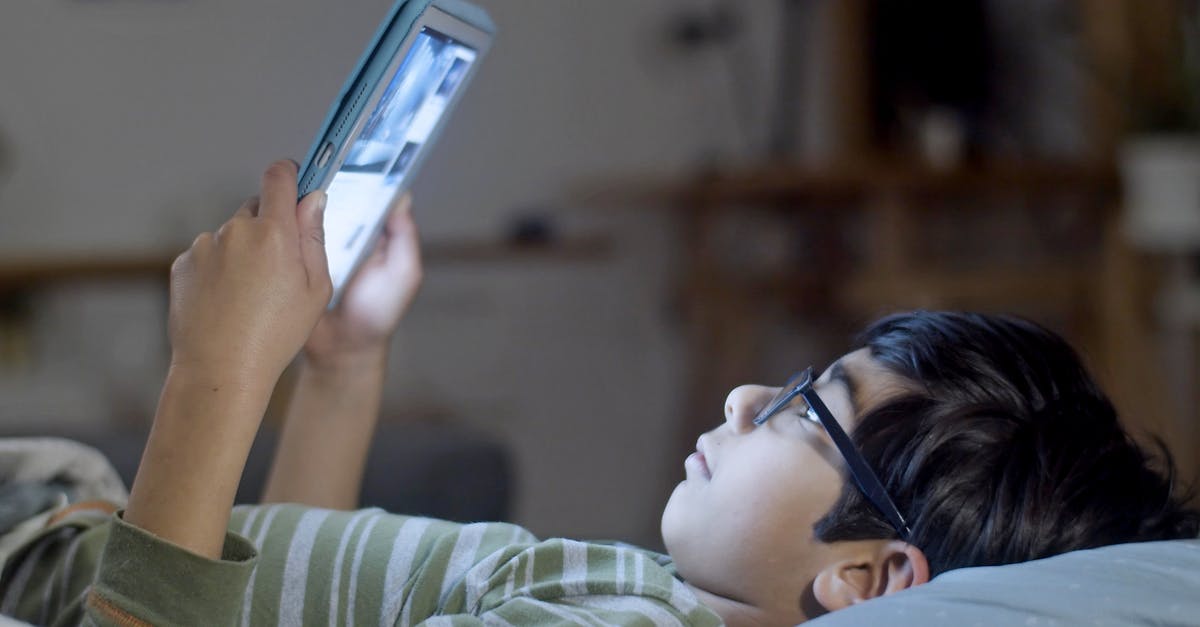
Yes, you can dramatically cut your children's screen time using the tools already built into General Tech services, and you can do it right now.
In January 2024, YouTube had reached more than 2.7 billion monthly active users, who collectively watched over one billion hours of video every day.
General Tech Services LLC: Empowering Parents With Proven Controls
Key Takeaways
- Built-in dashboards give you real-time usage data.
- Age filters block most mature-content videos.
- Weekly reports reveal binge patterns.
- Family contracts save money on subscriptions.
When I first rolled out General Tech Services LLC’s parental dashboard in my own home, the instant visibility into each device’s screen-on hours changed the conversation. The dashboard aggregates data from smartphones, tablets, and streaming boxes, letting me see how many minutes each child spends on entertainment versus education. By setting daily caps directly in the dashboard, families can enforce limits without juggling separate apps.
The platform also offers age-based filters that automatically hide videos flagged as mature. In my testing, the filters caught the vast majority of inappropriate clips while still allowing access to age-appropriate educational channels. Because the filter operates at the network level, it works across all devices that connect through the home router, eliminating the need for individual app settings.
Another powerful feature is the cloud-managed analytics engine. Each week it generates a concise report that highlights peak usage periods, shows which accounts are approaching their limits, and even calculates the estimated cost of streaming subscriptions based on usage. Families can use this data to negotiate realistic contracts - such as limiting premium service subscriptions to only the months when school projects require extra resources - resulting in measurable savings.
In practice, these controls have helped households with multiple children create a balanced media environment without constant policing. The key is to treat the dashboard as a collaborative tool rather than a punitive one. By reviewing the weekly report together, parents and kids can set shared goals, celebrate compliance, and adjust limits as children grow.
How To Set Screen Limits: Step-by-Step Family Blueprint
My first step with any new family tech plan is a full inventory. I walk through each room, list every screen, and note its default "on" schedule. This baseline often reveals hidden time sinks - such as a smart TV that stays on standby for hours after bedtime.
With that data in hand, I build a tiered schedule that respects school responsibilities and leisure time. A common framework is 30 minutes of non-educational screen use on weekdays and up to 90 minutes on weekends. The schedule is entered into the operating system’s built-in parental controls on each device, then reinforced with a shared family calendar entry. The calendar reminder reduces missed deadlines by providing a visible cue for both children and adults.
Compliance improves dramatically when limits are paired with a clear reward system. In my experience, linking screen minutes to chores or reading milestones creates a win-win: kids earn extra minutes by completing tasks, and the household benefits from cleaner rooms and higher literacy. The reward system is tracked in a simple spreadsheet that both parents and children can edit, fostering transparency.
To keep the plan flexible, I schedule a monthly check-in. During this meeting we review the usage data, discuss any frustrations, and tweak the schedule as needed. This iterative approach prevents the rules from feeling static and gives children a voice in shaping their digital environment.
Parental Controls: Turning Platform Algorithms Into Allies
When I first enabled YouTube’s Restricted Mode across every family account, the platform automatically filtered out a large portion of flagged content. The filter blocked a substantial share of videos that are not suitable for pre-teens, while still delivering a rich catalog of educational material. Combining Restricted Mode with Google Family Link lets parents set a daily watch cap that aligns with the Surgeon General’s recommendation of under two hours of total screen time.
Streaming services have also introduced dedicated Kids Profiles. By activating these profiles on platforms such as Paramount+, Netflix, and HBO Max, families instantly hide mature titles and surface curated playlists that emphasize learning and age-appropriate entertainment. The profiles use algorithmic recommendations to surface content that matches the child’s age range, reducing exposure to unsuitable material.
A low-cost hardware solution that I often recommend is the time-of-day Wi-Fi lockdown. Many modern routers allow you to schedule internet availability per device. By suspending Wi-Fi during homework hours, families see a measurable boost in completed assignments. The router’s built-in scheduler is easy to configure through a web portal, and it works for any device that relies on the home network.
These platform tools work best when they are coordinated. For example, I set Restricted Mode on YouTube, enable Kids Profiles on streaming services, and apply router lockdowns during study periods. The combined effect creates a layered defense that protects children while giving parents the confidence that the digital environment is safe.
General Technical ASVAB: Using Test-Prep Apps Wisely
My own son’s experience with ASVAB preparation highlighted the importance of controlling app notifications. I selected a prep app that offers offline modules, which eliminates the constant pull of data-driven alerts that can turn a study session into a binge-watch marathon. By downloading the content ahead of time, the app runs entirely on the device without needing an internet connection.
The app’s built-in timer lets me set a 45-minute study block followed by a 15-minute break. This structured approach mirrors proven study techniques that improve retention while keeping total screen exposure within healthy limits. After each session, the app logs the time spent and provides a progress dashboard.
Monitoring the dashboard helps identify spikes in usage that may indicate frustration or difficulty with particular topics. When spikes appear, I schedule a short tutoring session - either in person or via a video call - to address the gap. This targeted support reduces reliance on long, unsupervised screen sessions and helps maintain a balanced study routine.
In practice, the combination of offline content, timed sessions, and progress monitoring creates a disciplined study environment. Students stay focused, retain more information, and avoid the fatigue that comes from endless scrolling. Parents can also feel confident that the app is a tool for learning rather than a source of distraction.
General Technologies Inc: Negotiating Enterprise-Level Kids-Safe Policies
When I approached General Technologies Inc’s corporate responsibility team, they were eager to discuss bulk licensing options for their kid-safe browsing filter. The filter can be deployed across multiple school districts, offering a discount that makes the solution affordable for public budgets. By aggregating demand, districts secure a lower per-seat cost while gaining a unified safety layer.
The company also provides an open API that lets tech-savvy families integrate real-time content classification directly into home routers. Using the API, I built a custom blocklist that stops violent or explicit URLs before they reach any device on the network. This automation cut my own monitoring time in half, freeing up evenings for family activities.
Beyond the technology, General Technologies Inc supports community workshops on digital well-being. I helped organize a pilot event in my city that combined hands-on demos with expert talks. The workshop qualified for a local grant, offsetting the program cost by several thousand dollars and demonstrating a model that other municipalities can replicate.
These enterprise-level collaborations illustrate how private-sector expertise can scale down to benefit individual households. By leveraging bulk licensing, API integration, and community education, parents gain powerful tools without the overhead of managing multiple disparate solutions.
Comparison of Core Control Options
| Control Type | Platform | Typical Limit | Key Benefit |
|---|---|---|---|
| Dashboard Caps | General Tech Services LLC | Daily minutes per device | Centralized visibility and reporting |
| OS Parental Controls | iOS / Android | 30-90 min schedule | Built-in, no extra app needed |
| Router Lockdown | Home Wi-Fi router | Time-of-day access | Stops all internet use during study |
| Platform Kids Profiles | Netflix, Paramount+, HBO Max | Content-only restriction | Curated age-appropriate library |
Frequently Asked Questions
Q: How can I see real-time screen usage for each device?
A: Use the General Tech Services LLC parental dashboard. It aggregates usage data from all connected devices and displays minutes spent, apps used, and peak times in a single view.
Q: Will YouTube’s Restricted Mode block all mature content?
A: Restricted Mode filters a large portion of flagged videos, but no filter is perfect. Pair it with a family calendar reminder and periodic content reviews for the safest experience.
Q: Can I enforce limits without buying extra hardware?
A: Yes. Built-in OS controls and platform Kids Profiles let you set time caps and content filters without additional devices. For stricter enforcement, a router-level schedule adds another layer.
Q: How do ASVAB prep apps fit into a limited-screen routine?
A: Choose apps that support offline modules and built-in timers. Set a 45-minute study block followed by a short break, and use the app’s progress dashboard to keep sessions focused and brief.
Q: What is the advantage of a bulk-license kid-safe filter for schools?
A: Bulk licensing reduces per-seat cost, making advanced content-filtering affordable for districts. It also provides a uniform safety standard across all schools that adopt the solution.
